Professional ID
Tips for better results
Preview — your generation appears here
What is Professional ID?
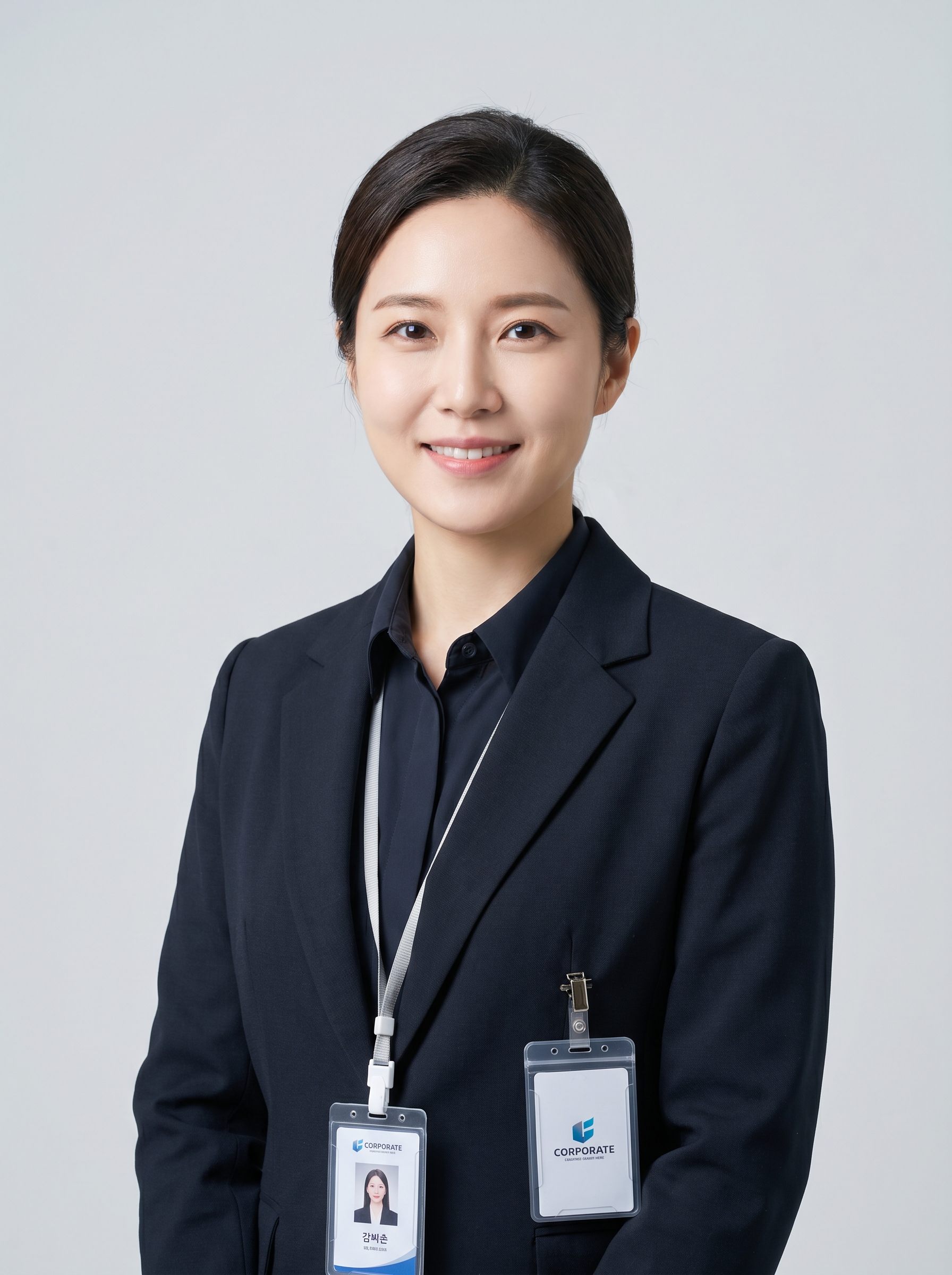
The Professional ID effect on PromptNerdyToMe transforms your casual snapshots into polished, corporate-ready headshots. By analyzing your uploaded photo, the tool applies clean studio lighting, neutral backgrounds, and professional business attire to create a high-quality ID-style image. It is designed to help you present a consistent, formal appearance across various digital platforms without the need for an expensive photography session. The resulting image maintains your key facial features while giving the overall portrait a refined, corporate badge aesthetic.
Best for
- • Creating a polished profile picture for LinkedIn
- • Setting up a clean avatar for Slack or Microsoft Teams
- • Updating your professional bio image on a company website
- • Creating a corporate-style transformation post for TikTok
How to use Professional ID
Upload your photo
Select and upload a clear, high-resolution portrait of yourself with a direct view of your face.
Select the effect
Choose the Professional ID effect from the style library to apply the corporate styling.
Generate the image
Click the generate button and wait a few moments while the AI processes your photo into a professional headshot.
Download and share
Save your new professional ID image to your device and upload it to your preferred professional networks.